


Home › Setup Guides › How to Record IPTV on iOS via Screen Recording
Whether you’re watching live sport, a news broadcast, or your favourite show via IPTV for iPhone, there are times you’ll want to capture and save the stream for later. Fortunately, recording IPTV on iOS, macOS, and Apple TV is entirely possible — using either Apple’s built-in tools or dedicated IPTV recording features in apps like TiviMate.
This guide covers every method available: screen recording on iPhone and iPad, QuickTime Player on Mac, and recording from Apple TV via a connected Mac.
Method 1 – Record IPTV on iPhone & iPad (iOS Screen Recording)
Since iOS 11, every iPhone and iPad includes a built-in screen recording feature — no third-party apps required. This is the simplest way to record IPTV for iPhone or iPad streams.
How to Enable Screen Recording on iPhone
- Go to Settings → Control Center → Customize Controls.
- Tap the “+” next to Screen Recording to add it to your Control Center.
How to Record Your IPTV Stream on iPhone
- Open your IPTV app for iOS (iPlayTV, IPTV Smarters Pro for iPhone, TiviMate iOS, GSE Smart IPTV, etc.) and start playing your channel.
- Swipe down from the top-right corner to open Control Center.
- Tap the Screen Recording button (circle icon). A 3-second countdown begins.
- Your iPhone is now recording everything on screen — including your IPTV iPhone stream.
- To stop recording, tap the red status bar at the top of the screen, or return to Control Center and tap the record button again.
- The recording saves automatically to your Photos app.
Audio tip: Long-press the Screen Recording button in Control Center and enable Microphone Audio if you want to capture external audio alongside the stream.
Method 2 – Record IPTV on Mac Using QuickTime Player
For IPTV Mac users, QuickTime Player is the most straightforward and reliable tool for screen recording — no additional software needed.
Steps to Record IPTV on Mac
- Launch QuickTime Player from your Applications folder.
- Go to File → New Screen Recording.
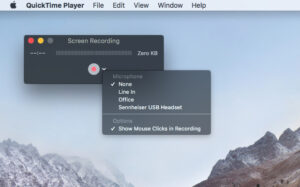
- Click the dropdown arrow next to the record button to configure options:
- Select your microphone for audio capture
- Enable “Show Mouse Clicks” if desired
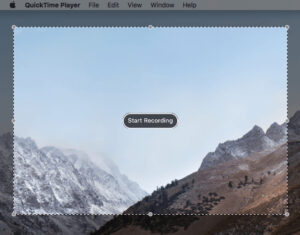
- Click the record button, then either click anywhere to record the full screen, or drag to select a specific area (e.g., just your IPTV player).
- Press Start Recording.
- When done, click the stop button in the menu bar.
- Go to File → Save to export your recording.
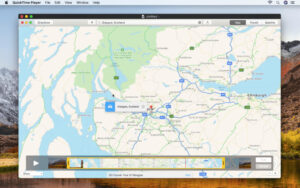
QuickTime saves recordings in .MOV format — compatible with all Apple devices and easily converted for other platforms. For IPTV Mac users who want a dedicated IPTV player Mac with built-in recording, TiviMate for Mac (via emulator) or IPTV Smarters Pro PC (Mac DMG) are worth exploring as alternatives.
Method 3 – Record IPTV from Apple TV via Mac
Apple TV doesn’t support native screen recording — but you can mirror and record its output through a connected Mac using QuickTime Player.
For Apple TV 4th Generation (USB-C Connection)
- Connect your Apple TV to your Mac using a USB-C cable.
- Open Xcode on your Mac (free on the Mac App Store).
- Go to Window → Devices and Simulators.
- On your Apple TV, navigate to Settings → Remotes and Devices → Remote App and Devices and enter the pairing code shown.
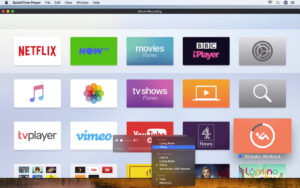
- Open QuickTime Player → New Movie Recording.
- Click the dropdown next to the record button and select your Apple TV under both Camera and Microphone.
- Your Apple TV screen will mirror in QuickTime — click record to begin capturing.
For Apple TV 4K (Wi-Fi Method)
Ensure both your Apple TV 4K and Mac are on the same Wi-Fi network. Follow the same Xcode pairing steps above — no cable required.
Method 4 – TiviMate Recording (Best for Android & FireStick)
If you’re primarily an Android or FireStick user, the easiest IPTV recording solution is built directly into TiviMate Premium — no screen recording needed.
TiviMate recording works as follows:
- While watching a channel, hold the OK button for 2 seconds to open the player menu.
- Select Record to start recording the current stream directly to your device’s storage.
- Access your saved recordings from the Recordings section in the TiviMate main menu.
TiviMate recording requires a TiviMate Premium subscription and sufficient internal or external storage. It records the raw IPTV stream — not a screen capture — resulting in higher quality output than screen recording methods.
This is also the method used by TiviMate iOS on iPhone, making it the best IPTV app for iOS for users who want native in-app recording without screen capture workarounds.
Key Considerations for IPTV Recording
Storage Space Long recordings consume significant storage. A 1-hour HD stream can use 2–5 GB depending on the bitrate. Consider using iCloud, external storage, or compression tools to manage file sizes after recording.
Audio Capture on iOS iOS screen recording captures app audio automatically. Enable Microphone Audio in the Control Center recording button only if you also want to capture ambient sound from the room.
Legal Considerations Always ensure you have the right to record the content. Many IPTV providers and broadcasters restrict recording of live streams as part of their terms of service. Recording is generally acceptable for personal, time-shifted viewing — redistribution is not.
FAQs
1. Can I record IPTV on iPhone without third-party apps?
Yes — iOS 11 and later include a built-in screen recording feature accessible via Control Center. Simply enable it in Settings → Control Center and use it to record any IPTV iPhone stream directly, with no extra apps needed.
2. What is the best tool for recording IPTV on Mac?
QuickTime Player is the simplest and most reliable built-in tool for IPTV Mac recording. For a dedicated IPTV player Mac with integrated recording, consider running IPTV Smarters Pro (DMG) or an Android emulator with TiviMate.
3. Can I record IPTV directly on Apple TV?
No — Apple TV doesn’t support native screen recording. The workaround is to pair your Apple TV with a Mac via Xcode and record using QuickTime Player. This method works on both Apple TV 4th gen (USB-C) and Apple TV 4K (Wi-Fi).
4. What is TiviMate recording and how does it work?
TiviMate recording is a built-in DVR feature in TiviMate Premium that records live IPTV streams directly to device storage — available on Android, FireStick, and TiviMate iOS. It offers higher quality than screen recording since it captures the raw stream rather than the display output.
5. Is screen recording IPTV on iPhone legal?
Recording IPTV for iPhone streams for personal, time-shifted viewing is generally considered acceptable in most regions. However, redistributing or uploading recorded content violates both your IPTV provider’s terms of service and copyright law. Always check your provider’s terms before recording.
6. Which IPTV apps for iPhone support in-app recording?
TiviMate iOS supports in-app IPTV recording (with Premium). Most other IPTV apps for iOS — including iPlayTV and IPTV Smarters Pro for iPhone — rely on iOS screen recording for capture, rather than built-in DVR functionality.
7. How do I record IPTV on iPad?
The process is identical to IPTV iPhone recording — enable Screen Recording in Settings → Control Center, then activate it from Control Center while your IPTV app for iOS is playing. The recording saves to your Photos app.
8. What format does QuickTime save IPTV recordings in?
QuickTime saves recordings as .MOV files on Mac. These are fully compatible with all Apple devices and can be converted to MP4 or other formats using free tools like HandBrake if needed for sharing or storage efficiency.
9. Can I record 4K IPTV streams on iPhone?
Yes — iOS screen recording captures whatever resolution is displayed on screen. If your IPTV player iOS is streaming a 4K channel and your iPhone display can render it, the recording will reflect that quality. Storage consumption will be higher for 4K recordings.
10. Is there a dedicated IPTV recorder app for iPhone?
There is no standalone IPTV record app available on the App Store due to Apple’s content restrictions. The best options remain iOS built-in screen recording for general use, or TiviMate iOS with Premium for dedicated in-app stream recording.
Conclusion
Recording IPTV on iPhone, iPad, Mac, and Apple TV is straightforward once you know the right method. Use iOS screen recording for quick captures on IPTV for iPhone and iPad, QuickTime Player for high-quality IPTV Mac recording, and TiviMate recording (Premium) for the most seamless in-app DVR experience on Android and iOS. Always keep storage and legal considerations in mind — and enjoy your favourite content on your own schedule.
Ready to start watching?
Try Tellystudio free for 24 hours, or pick the plan that fits your household.
Start Free TrialSee Plans